
Guide & FAQ
Everything you need to build, train, and embed an AI agent on your website.
Quick start
Four steps from signup to a live agent on your site — most people are done in under ten minutes.
- 1
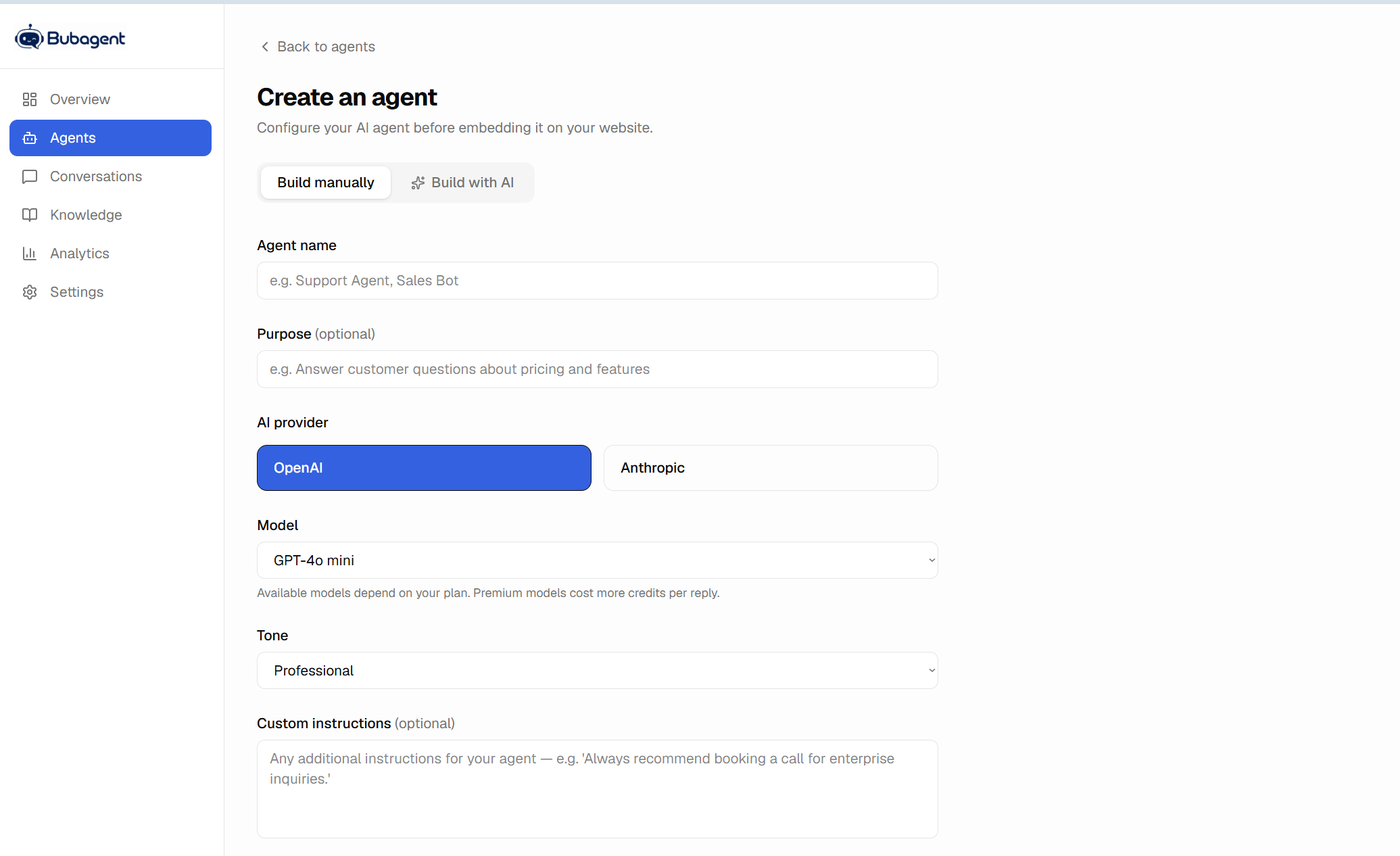
Create an agent
From the dashboard, click New agent — give it a name and pick an AI provider and model. You can also let the AI Agent Builder interview you and set it up conversationally.
- 2
Add what it should know
Paste in FAQs, scrape your site, or upload docs — see Training your agent below.
- 3
Customize how it looks
Set a welcome message, suggested questions, color, and avatar so it matches your site.
- 4
Embed the script tag
Copy one line of code from the agent's editor into your site's HTML — it's live immediately.
Training your agent
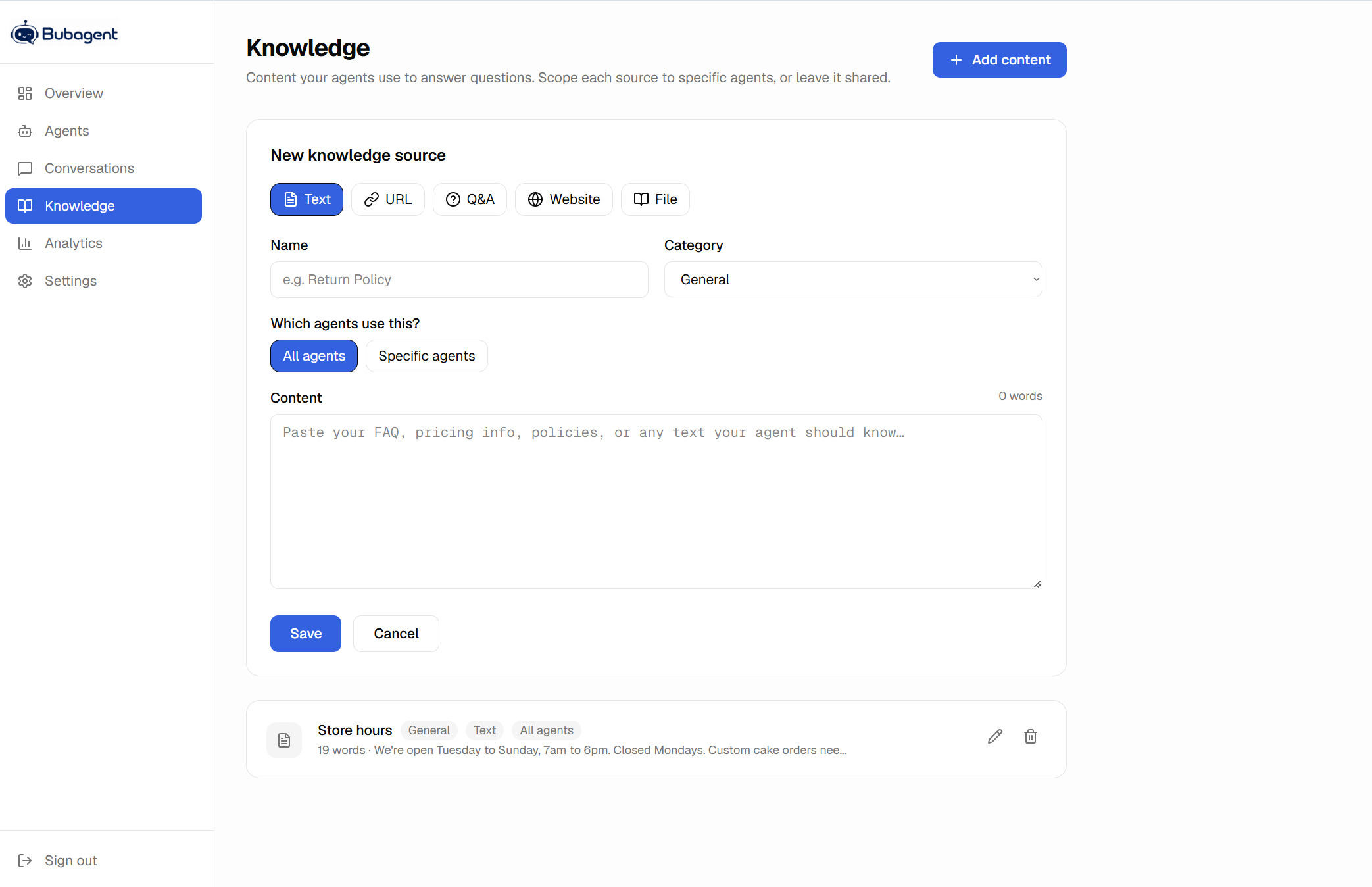
Your agent only answers from what you give it — no guessing, no hallucinated policies. Add content from the Knowledge tab in five ways:
- Paste text — drop in an FAQ, a policy, or any block of content directly.
- A single page URL — point at one page and it pulls the text automatically.
- Crawl a whole site — give it a starting URL and it follows internal links up to your plan's page limit.
- Q&A pairs — write the exact question and answer for things you want answered precisely.
- File upload — plain text or Markdown documents.
Every source can be shared across all your agents or scoped to specific ones — handy if one account runs agents for more than one product.
Embedding on your site
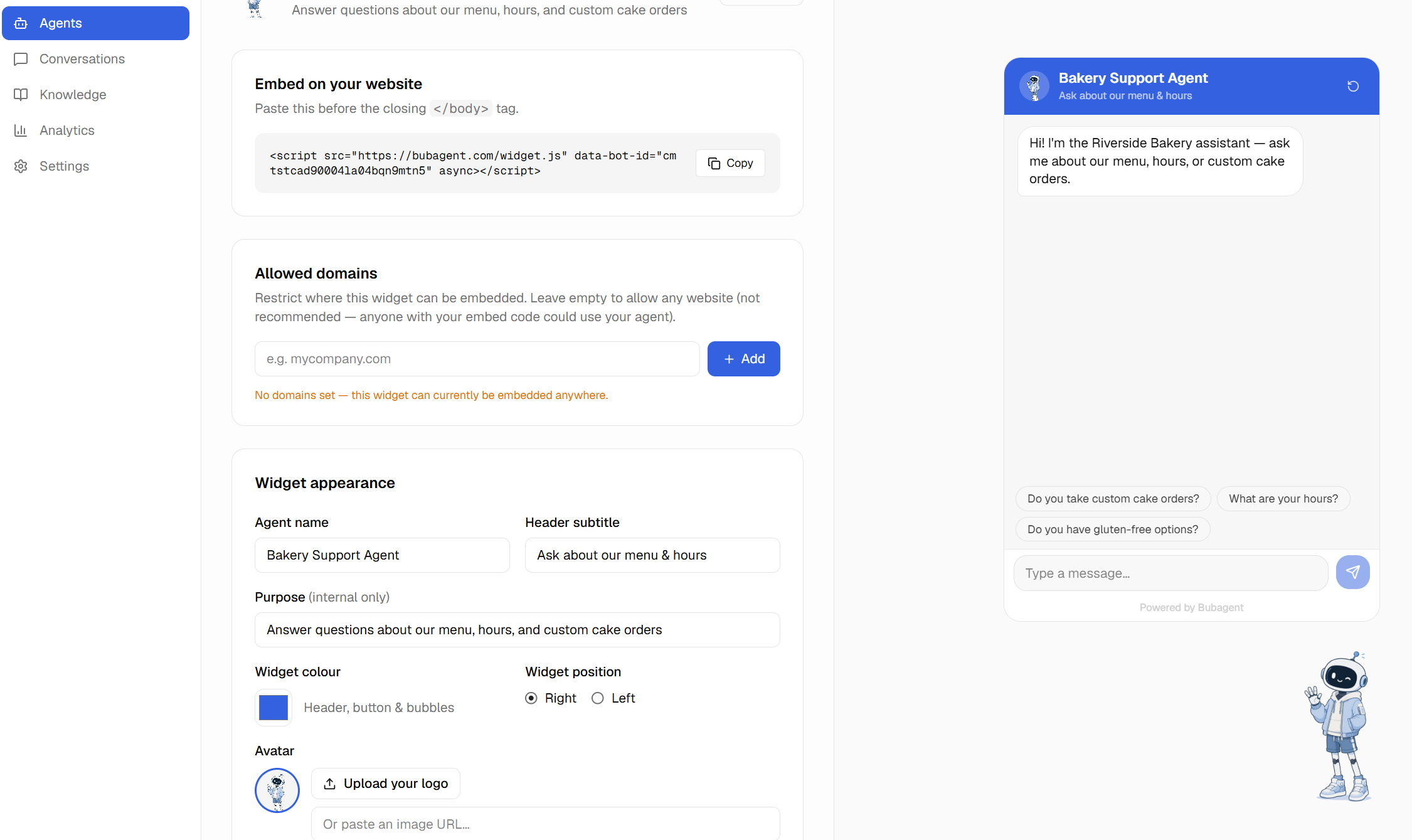
Every agent has its own embed snippet on its editor page — copy it into your site once, right before the closing </body> tag:
<script src="https://bubagent.com/widget.js" data-bot-id="YOUR_AGENT_ID" async></script>Works on any site — a static HTML page, WordPress, Shopify, Webflow, whatever you're running. No build step, no dependencies, nothing to install. Under Allowed domains in the agent editor you can restrict which sites the script is permitted to run on, so a copied snippet can't be used elsewhere.
Customizing the widget
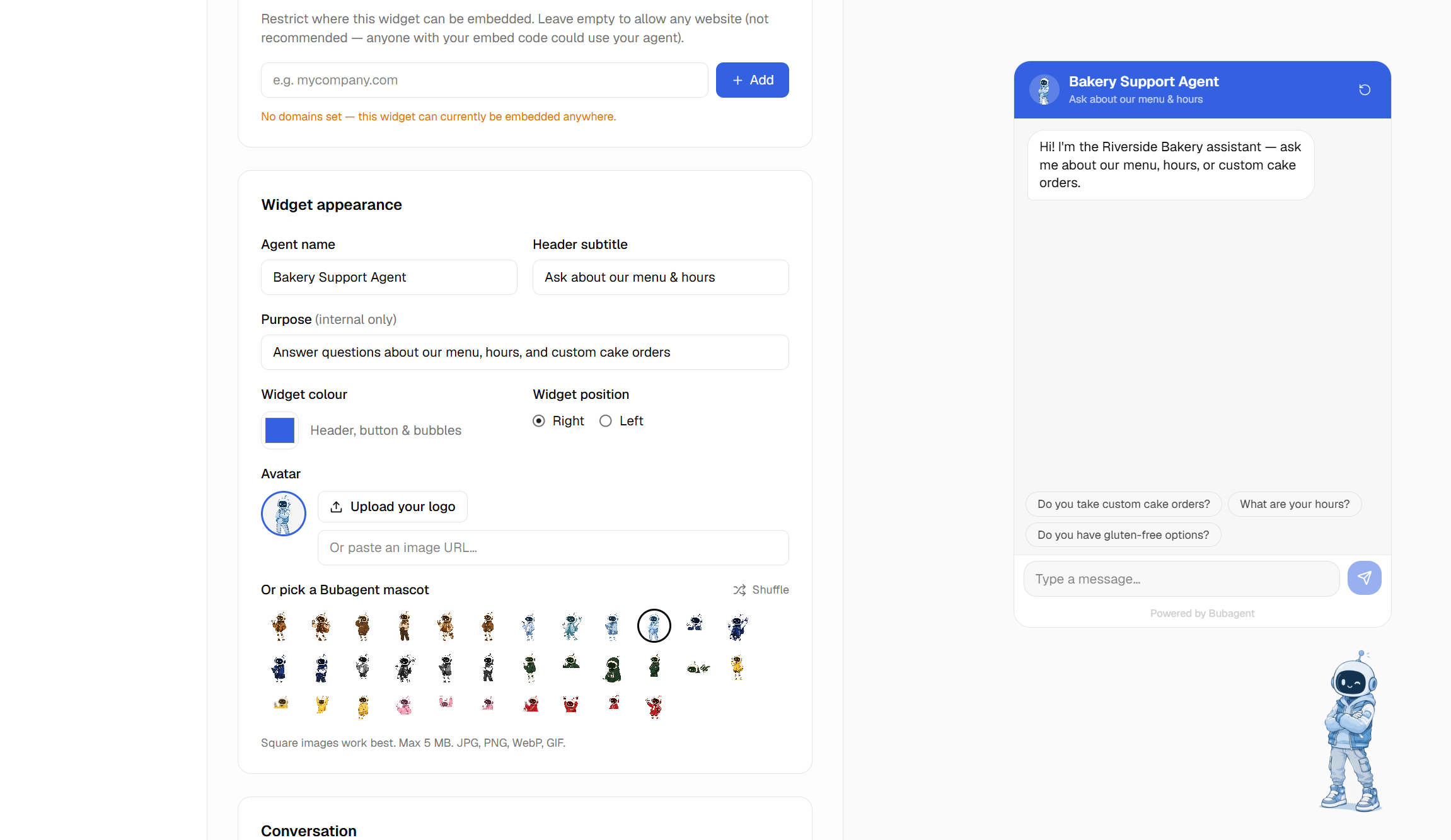
Everything below lives in the agent editor and updates live in the preview panel before you save:
- Avatar — upload your own logo, or pick from the built-in mascot set.
- Color & position — match your brand, bottom-left or bottom-right.
- Welcome message & suggested questions — the first thing a visitor sees, plus clickable prompts to get them started.
- Proactive popups — a small teaser bubble (“Need help?”) that appears near the launcher after a delay you set, on every page or a specific one.
- Lead capture — optionally ask for a name and email before the visitor can chat.
Notifications & conversations
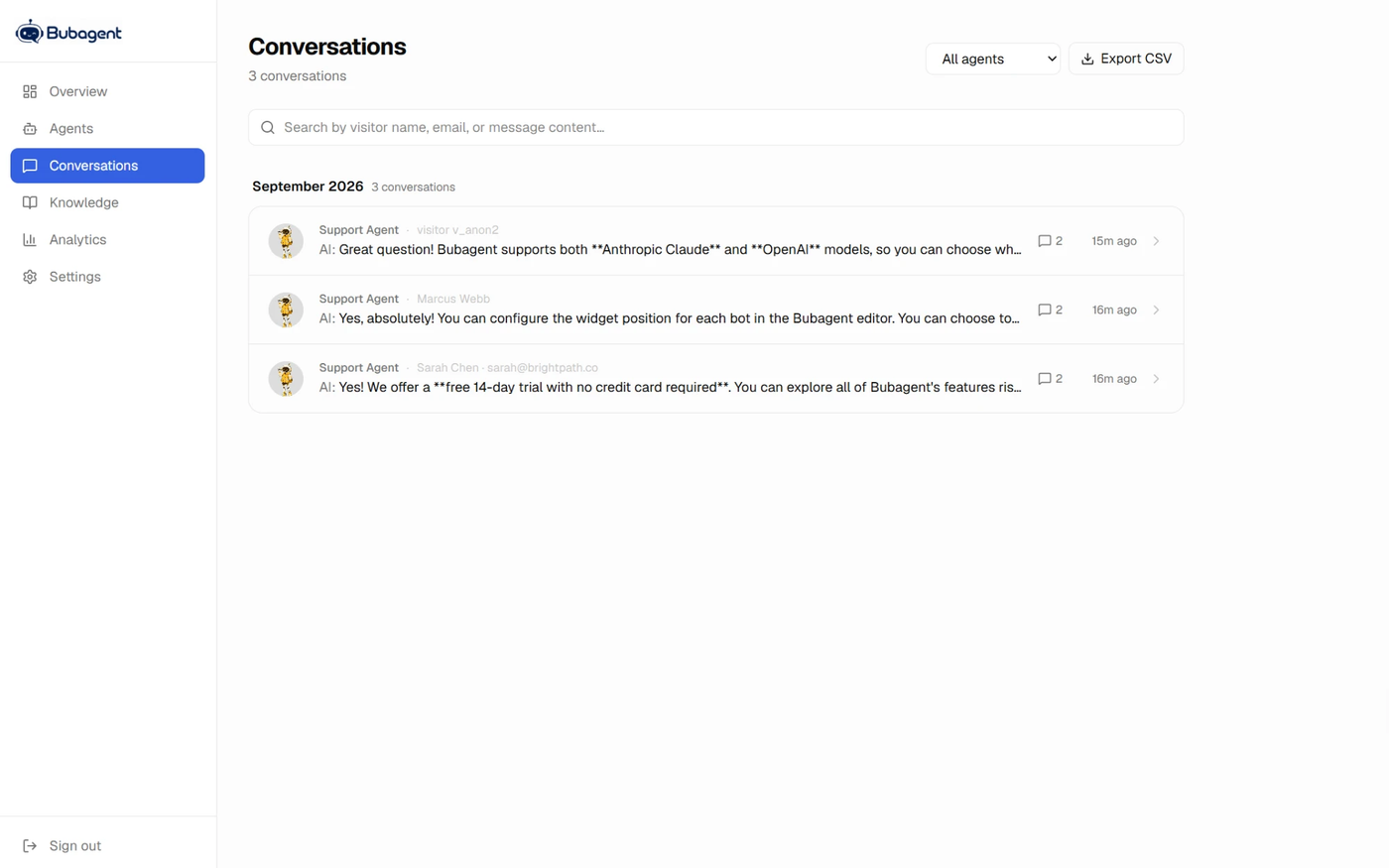
Every conversation is saved and searchable from the Conversations tab, grouped by month. On top of that, each agent can email you:
- Instant alerts — the moment a new conversation starts, either every time or only when a lead is captured.
- Digests — a daily, weekly, or monthly roundup of every conversation from the period, each with a link to the full chat log.
FAQ
How long does my agent take to learn new content?
Instantly. Anything you add to the knowledge base — text, a scraped page, a Q&A pair, an uploaded file — is available to your agent on its very next reply. There's no training/build step to wait on.
Can I scope knowledge to just one agent?
Yes. Every knowledge source can be shared across all your agents (the default) or scoped to specific ones from the source's edit screen — useful if you run agents for different products or brands from one account.
Does the widget slow down my website?
No. The embed script loads asynchronously and the widget itself only renders once a visitor opens it — it doesn't block your page from loading or affect your site's performance.
Can I move where the chat button appears?
Yes — bottom-right or bottom-left, set per agent in the editor's Appearance section.
What happens if a visitor asks something outside the knowledge base?
Your agent says it doesn't know rather than guessing, and (if you've set one up) offers your human handoff link — a phone number, email, or any URL you choose.
Can I test changes before visitors see them?
Yes — the bot editor has a live preview panel that runs your actual draft settings (including unsaved edits) against the real model, so you can try it before hitting Save.
Will I know when someone chats with my agent?
If you want to — instant email alerts (every conversation, or only when a lead is captured) and/or a daily, weekly, or monthly digest are both configurable per agent under Notifications.
Ready to build your first agent?
Get started free